The foundation
Before any of the other cool Flex Classes can work their magic, you need to tell OutSystems that a particular section of your page is going to be a “flex container” by applying the display-flex class. It's like turning a regular box into a “smart box” that knows how to arrange its contents automatically.
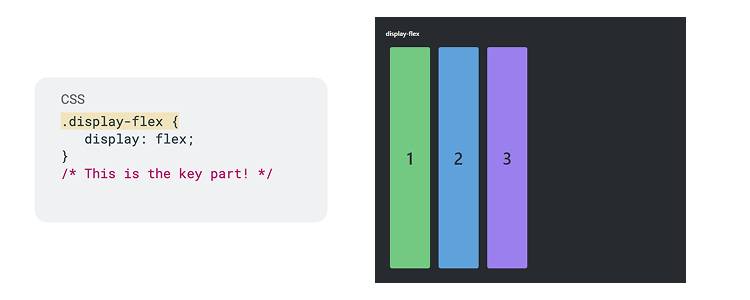
Once you've made your container a flex container, you can start using other classes to control how the items inside behave.
How do you line things up?
Let’s take a look.
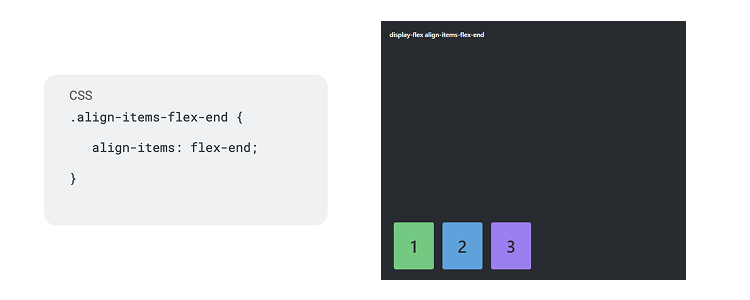
Align Items
This set of classes helps you line up items vertically in your flex container.
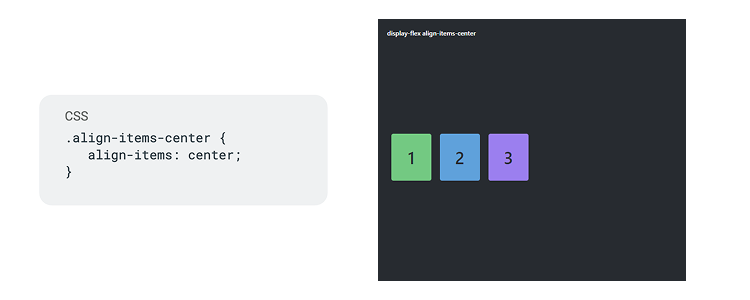
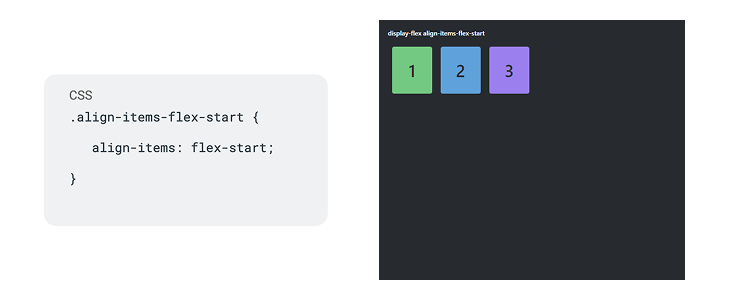
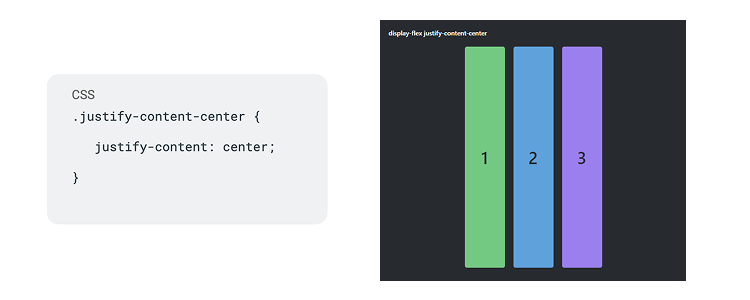
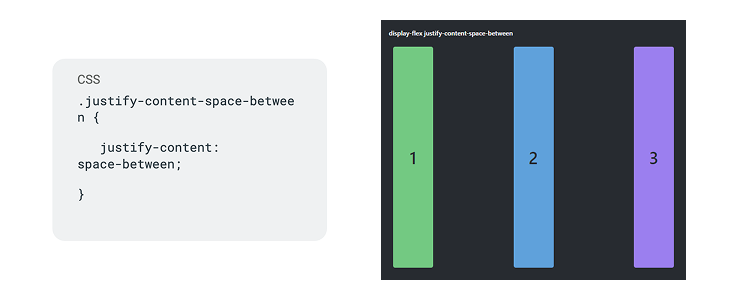
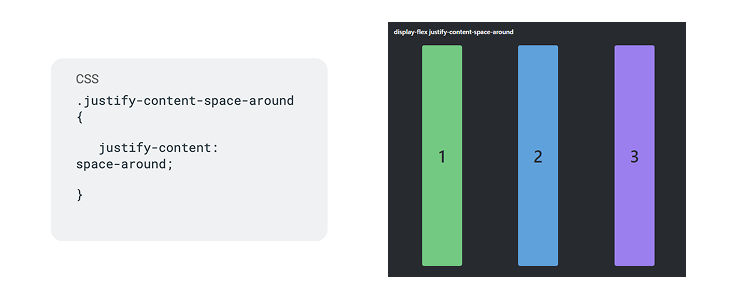
Justify Content
While Align Items handles vertical alignment, Justify Content deals with horizontal alignment, especially when your items don't fill up all the available space across the screen.
Position
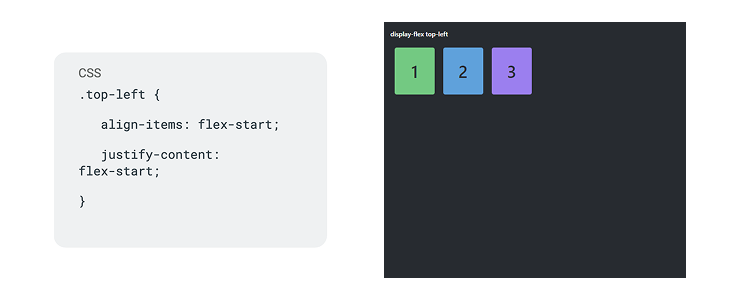
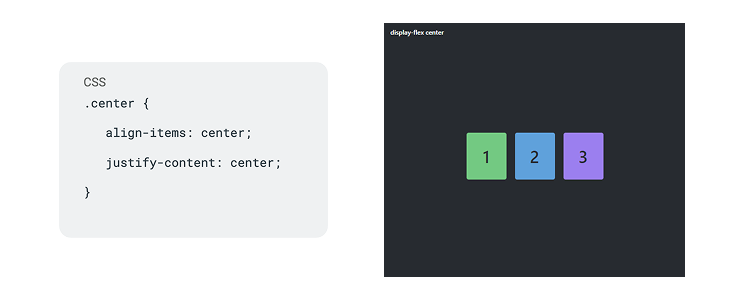
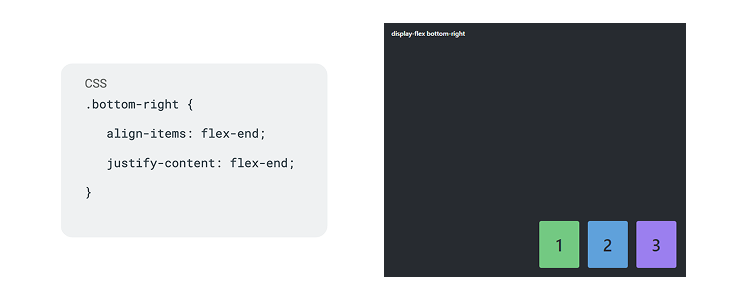
This is a super helpful shortcut! Instead of using align-items and justify-content separately, the Position classes combine them to place your items exactly where you want them. For example:
Arranging the flow of items
Now we’ll explore arranging items.
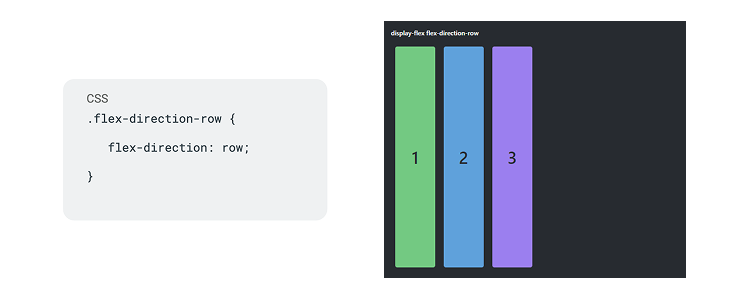
Direction
This class lets you decide if your items should be arranged in a row (horizontally) or a column (vertically). You can even reverse the order!
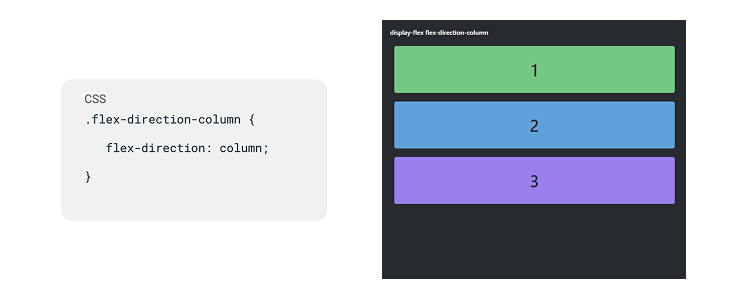
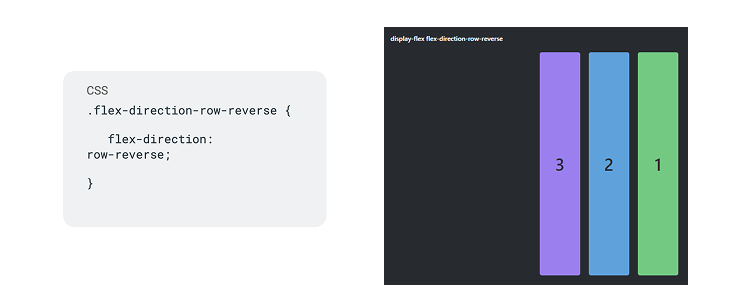
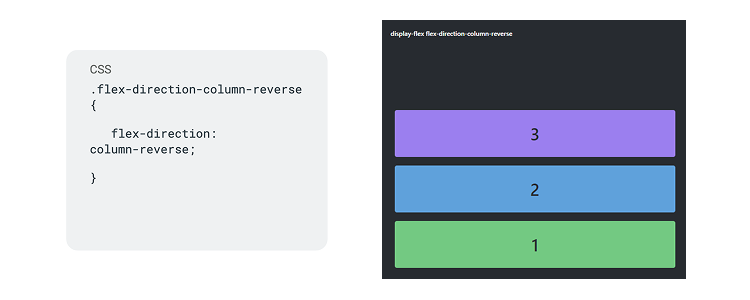
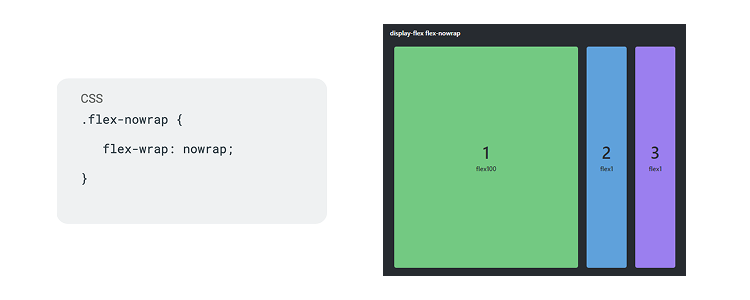
Flex Wrap
What happens if you have too many items to fit on one line? Flex Wrap tells your flex container whether to let items "wrap" onto the next line or squeeze them all onto a single line.
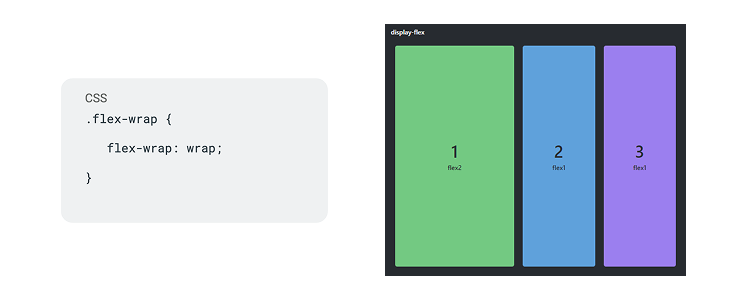
Sizing your items
Let’s see how Flex Classes help with the size of your items.
Element Span
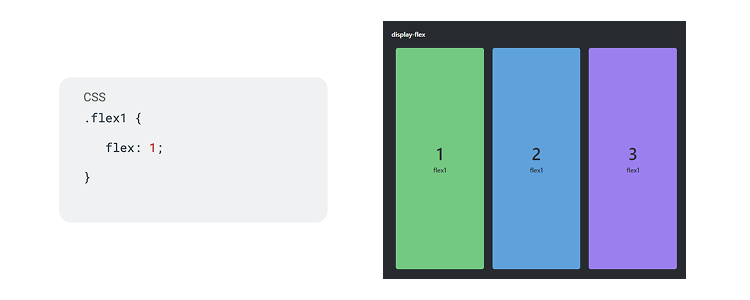
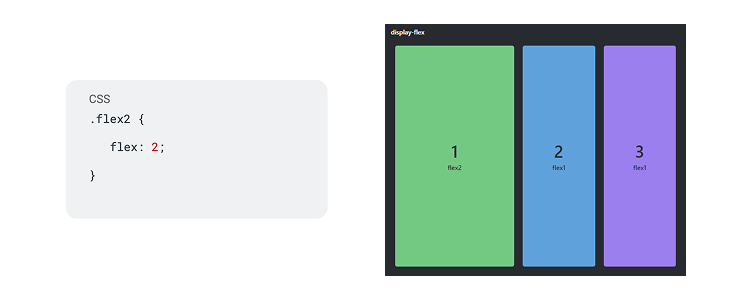
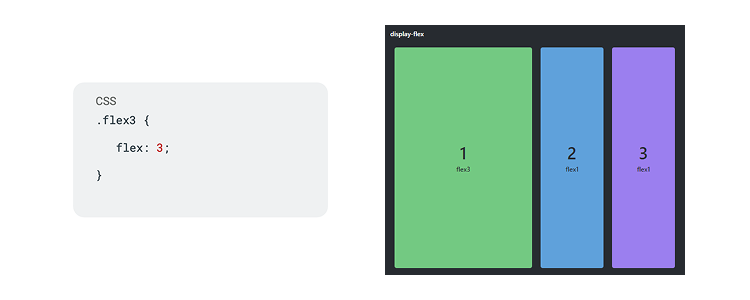
These classes control the size of individual items within the flex container. They are shorthand for more complex properties that determine how an item grows, shrinks, or takes up space.
You might see classes like flex1, flex2, flex3, which make items take up a relative amount of space. An item with flex2 will try to be twice as wide as an item with flex1 if space allows.
Managing multiple lines of items
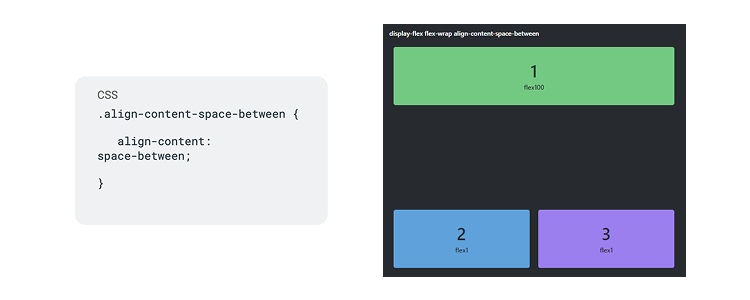
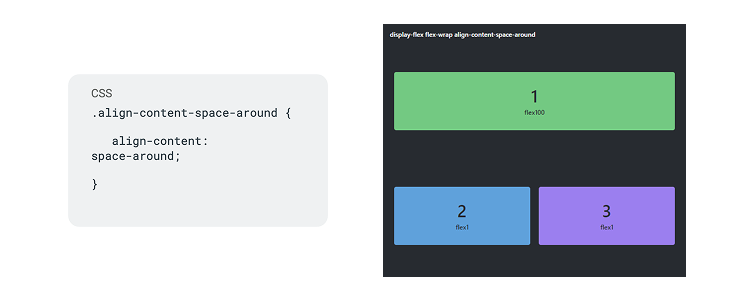
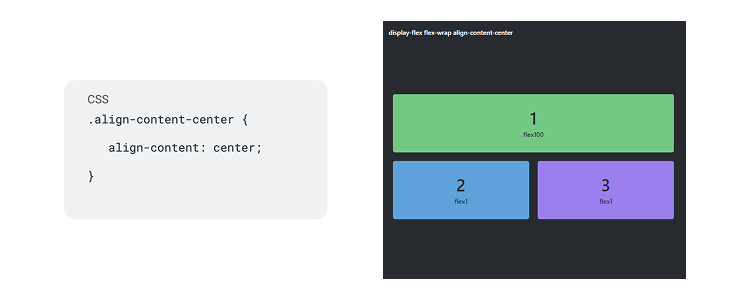
Align Content
This class is specifically for when you have multiple lines of flex items (because you're using flex-wrap). It helps you distribute those lines vertically along the "cross axis" (the vertical direction).
Align Self
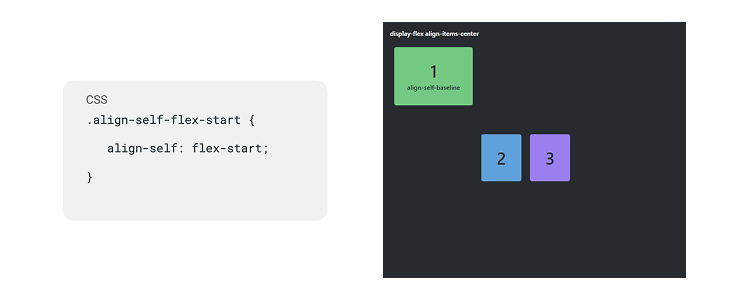
Sometimes, you want one specific item to behave differently from the others. Align Self is like giving a special instruction to a single item, overriding the general alignment set by align-items on the container.
So, if your container generally centers items, but you want one specific item to go to the top, you'd apply align-self-flex-start to that specific item.
Want to try it out?
There's a fantastic component called Interactive Flex Classes available from OutSystems Forge that lets you play around with these classes and see how they work in real-time.
This component also includes a documentation screen with a comprehensive list of all available flex-related classes, allowing you to explore even more options beyond what's covered in this guide. For a deeper understanding, you can test all these classes on the demo screen of the Interactive Flex Classes component.
It's like playing with building blocks: you start with a main display-flex container (your play area), and then you use the other Flex Classes as instructions to position, size, and arrange your individual blocks (items) exactly how you want them, making your OutSystems apps look professional and well-organized.
Get ready to design with precision and bring your dream application to life, no complex code required!
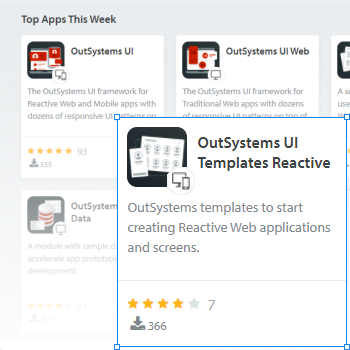
You can also check out the other UI components, templates, and features in the Forge.