
Developing with OutSystems
Creating HTML emails that look great everywhere is tough, especially when you factor in older desktop versions of Microsoft Outlook. These legacy clients (we're looking at you, Outlook 2007, 2010, 2013, and 2016) often feel like a digital time capsule, stuck in a pre-modern web era. Our goal? To build emails that maintain modern styling and design fidelity across all major email clients (web, desktop, and mobile) while specifically ensuring readability, maintainability, and broad compatibility, even in those older Outlook versions.

Table of contents:
- Why legacy Outlook keeps us on our toes
- The quest for consistent design
- Our strategic implementation playbook
- Common headaches and their workarounds
- Diving deeper: Implementation examples
- Real-world example: Rendering discrepancies in dynamic content
- The testing gauntlet: When access is denied
- Conclusion: Building for today and yesterday
Why legacy Outlook keeps us on our toes
Older Outlook versions throw a wrench into modern email development because they rely on the Microsoft Word rendering engine. Yes, you read that right! This means they're not exactly playing nice with the latest web standards. Here's why it's a common developer headache:
- Limited HTML and CSS support: Forget modern properties; many are simply ignored.
- CSS property black holes: Things like border-radius, box-shadow, and gradients often vanish into thin air.
- Responsive design woes: Media queries and responsive layouts? Unreliable at best, completely broken at worst.
- Font fiascos: Web fonts are generally a no-go. Stick to system fonts if you want predictable typography.
- Layout limitations: Floats, flexbox, and CSS grid? Absolutely unsupported. This means back to basics for structure.
The quest for consistent design
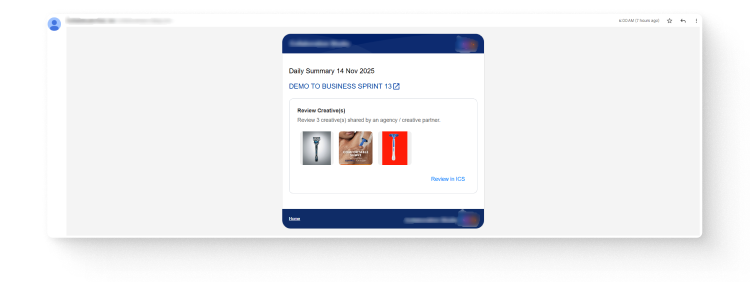
Despite these challenges, our designs weren't simple. We needed to implement complex layouts featuring:
- Card-style sections with those ever-popular rounded corners.
- Borders, separators, and stylized containers to define content areas.
- Images and background effects to enhance visual appeal.
- A clear header, body/content, and footer structure.
The trick was ensuring these intricate designs looked consistent across both legacy and modern clients. Talk about a balancing act!
Our strategic implementation playbook
To achieve this challenging balance, we adopted a multi-pronged approach, focusing on techniques that offered the broadest compatibility:
1. Embracing the <table> for stability
When modern <div> layouts fall flat in Outlook, the humble <table> steps up. We used nested <table> layouts for all structural elements, ensuring consistent rendering across all clients, especially older Outlook versions that inherently support this structure. Each table was explicitly sized (e.g., width="600") to prevent scaling issues, giving us pixel-perfect control.
2. VML: The legacy Outlook lifesaver
VML (Vector Markup Language) might sound like a relic from the past, and it is! This Microsoft-specific language, though deprecated, is still supported by older Outlook versions. This makes it invaluable for creating fallback styles that render correctly in legacy environments without disrupting newer clients. Think of VML as a specialized translator. When newer clients see standard HTML/CSS, they use that. When older Outlook encounters an element it can't render, VML acts as a fallback technique to display things like background images and rounded corners properly.
3. Inline styles and conditional comments: Precision targeting
To boost rendering reliability and minimize conflicts, we drastically reduced the use of CSS classes. Instead, we moved all styling inline wherever possible, ensuring Outlook correctly applied the styles. Crucially, we leveraged conditional comments (for example, <!--[if mso]>) to target Outlook specifically. This neat trick allows us to deliver Outlook-only code that other clients simply ignore, ensuring our modern designs remain untouched.
4. Strategic compromises for broad compatibility
While the goal was broad compatibility, some strategic compromises were necessary. The code we developed ensures that modern clients (web, mobile, Mac) see the full design fidelity, while older Outlook versions gracefully degrade where features are truly unsupported or where the complexity of adding them didn't justify the effort.
Common headaches and their workarounds
Building for legacy Outlook inevitably leads to some common challenges. Here’s a look at a couple of big ones and how we tackled them.
1. Taming rounded corners in dynamic-height cards
The problem
In modern CSS, adding border-radius to a <div> or <table> is straightforward for rounded corners. But legacy Outlook (2007–2016) just shrugs and ignores it, thanks to its Word rendering engine.
Why it's so tricky with dynamic content
- Card heights are rarely fixed; they grow and shrink based on content.
- VML's <v:roundrect> is our go-to for Outlook rounded corners, but it demands explicit width and height.
- If your content bursts beyond a fixed VML height, the container doesn't expand, leading to broken corners or clipped backgrounds, which is not a professional look.
- Developers often resort to calculating approximate heights or using “stretching tricks” with padding, which can get messy and hard to maintain.
Our go-to workarounds
- Nested tables with separate cells for corners, stretching the middle cell to fit content.
- Trying VML <v:roundrect> with style="height:auto" in some cases, though this isn't always reliable in older Outlook.
- Accepting some visual compromise: sometimes, rounded corners only appear on the top/bottom, or are reserved solely for modern clients. [IMAGE SUGGESTION: A "before & after" visual showing a dynamic card with broken rounded corners in Outlook vs. a correctly rendered one using a workaround (e.g., nested tables).]
2. Mastering borders around content
The problem
You want a simple border around specific content, not the entire card. Easy in modern HTML/CSS – just wrap it in a <div> and apply border:1px solid. But Outlook's Word engine often ignores CSS borders on <div> elements, and even <td> borders can be inconsistent.
The underlying complexity
- You'll often find yourself creating extra nested <table> structures just to get borders to render reliably.
- Each new border can require a new <table> row or cell, rapidly increasing HTML complexity.
- Dynamic content height again causes headaches, as the inner table needs to expand gracefully without breaking the border.
- Combining borders with rounded corners? Even harder, as VML and table borders don’t always align perfectly.
Practical solutions
- Use a single-cell table with background colors to cleverly simulate borders.
- Employ nested tables for each bordered section, ensuring cellpadding and cellspacing are meticulously set for proper spacing.
- Be prepared to accept slight visual differences between Outlook and modern clients, relying on VML or fallback styles for rounded corners where absolute consistency isn't feasible.
Diving deeper: Implementation examples
Let's look at how these strategies play out in code.
The "why"
Older Outlook (2007–2016) relies on Word’s rendering engine, which doesn't reliably support <div> layouts, floats, flexbox, or even background images on divs. Tables remain the only reliable way to control width, height, padding, borders, and alignment.
Modern <div> approach (modern email):
None
<div style="background-color:#ffffff; border-radius:10px; padding:20px; margin:20px auto; width:600px;>
    <h1 style="font-size:24px; margin:0 0 10px;">Welcome!</h1>
    <p style="font-size:16px; line-height:24px;">This is a sample content block.</p>
</div>
Legacy <table> transformation (for Outlook):
None
<table width="600" cellpadding="0" cellspacing="0" border="0" align="center" style="background-color:#ffffff; border-collapse:collapse;">
    <tr>
        <td style="padding:20px;">
            <h1 style="font-size:24px; margin:0 0 10px;">Welcome!This is a sample content block.</h1>
            <p style="font-size:16px; line-height:24px;">This is a sample content block.</p>
        </td>
    </tr>
</table>
Key points
This <table> structure ensures a fixed width across Outlook. Notice how cellpadding and cellspacing replace some padding/margin behavior. Remember, inline styles are crucial for consistency, and border-radius will likely still be ignored here, necessitating VML.
VML in action
VML is our secret weapon for rendering features that Word simply can't handle, like background images, rounded corners, and buttons, specifically for Outlook.
Background images across clients
HTML + CSS (modern clients):
None
<div style="background-image:url('bg.jpg'); background-size:cover; width:600px; height:200px;">
    <p>Some content</p>
</div>
VML fallback for Outlook:
None
<!--[if mso]>
<v:rect xmlns:v="urn:schemas-microsoft-com:vml" fill="true" stroke="false" style="width:600px;height:200px;">
    <v:fill type="frame" src="bg.jpg" color="#ffffff"/>
    <v:textbox inset="0,0,0,0">
<![endif]-->
        <p style="margin:0; padding:10px;">Some content</p>
<!--[if mso]>
    </v:textbox>
</v:rect>
<![endif]-->
How it works
<v:rect> defines our container, <v:fill> sets the background image or a fallback color, and <v:textbox> holds the actual content. The conditional comments <!--[if mso]> ensure this VML magic only happens in Outlook, leaving other clients to use the standard <div>.
Crafting rounded buttons and corners
HTML (modern):
None
<a href="###""" style="display:inline-block; background-color:#007BFF; color:#ffffff; padding:10px 20px; border-radius:5px; text-decoration:none;">Click Me</a>
VML fallback for Outlook:
None
<!--[if mso]>
<v:roundrect xmlns:v="urn:schemas-microsoft-com:vml" href="###""" style="height:40px;v-text-anchor:middle;width:150px;" arcsize="10%" strokecolor="#007BFF" fillcolor="#007BFF">
   <v:textbox inset="0,0,0,0">
<![endif]-->
       <a href="###""" style="display:block; color:#ffffff; text-align:center; text-decoration:none; line-height:40px; width:150px;">Click Me</a>
<!--[if mso]>
   </v:textbox>
</v:roundrect>
<![endif]-->
Explanation
<v:roundrect> is the key here, letting Outlook render those rounded buttons. arcsize="10%" controls the corner radius, while strokecolor and fillcolor define the border and background. The inner <a> tag ensures the button text is both readable and clickable in all clients.
Real-world example: Rendering discrepancies in dynamic content
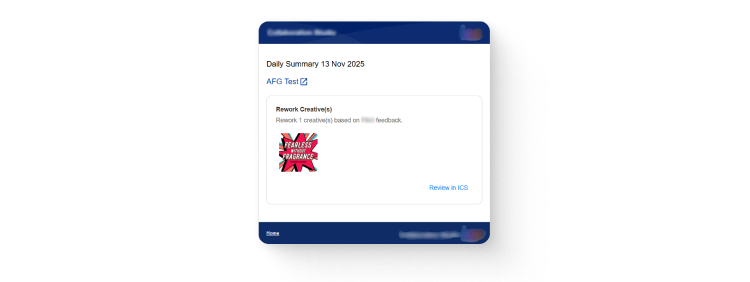
During our implementation and testing phase, we encountered a practical example that clearly illustrated the challenges of maintaining consistent rounded corners in content with variable height. In modern email clients, the design is rendered correctly with rounded card corners and consistent spacing.
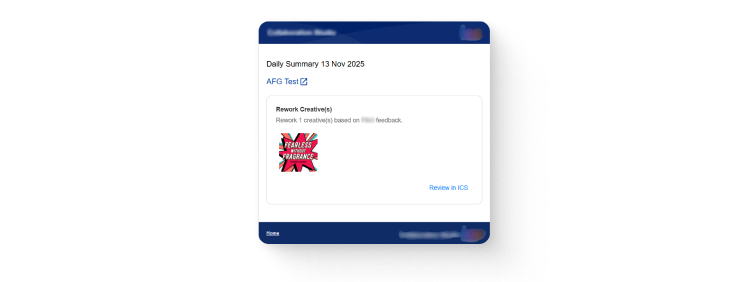
While implementing this using VML fallbacks, we found that Outlook’s older versions required significant fine-tuning to achieve acceptable visual results. VML provided a workable solution for rendering rounded corners, but it demanded explicit sizing and often struggled with dynamic-height content. The VML shape would not automatically adjust, leading to distorted or clipped corners.
To maintain layout consistency, we made targeted adjustments, such as tweaking padding, fixed dimensions, and VML arcsize values, to balance appearance and flexibility. However, in some cases, especially where content height varied unpredictably, we opted for a simpler, more reliable fallback: straight borders without rounded corners. This compromise ensured a clean and professional look across all clients, even if it meant sacrificing some of the intended design styling in legacy Outlook environments.
The testing gauntlet: When access is denied
After pouring countless hours into development, you might think the finish line is in sight. But hold your horses! Rigorous testing is absolutely non-negotiable. Ensuring your solutions perform flawlessly across all user environments is paramount. You'd think testing would be straightforward, but often, it's anything but, especially when you're grappling with the unique quirks of legacy software.
The tooling conundrum
- Limited free tools: Finding reliable free testing applications that can accurately emulate these specific, older environments – particularly those legacy Outlook versions – is almost impossible.
- Paid services barriers: While comprehensive paid testing services do exist, they typically require a subscription. Even if the budget allows, these services often still need client-provided access to test environments or specific software licenses. And, in many cases, clients simply can't or won't provide that direct access to their particular setup. This leaves development teams scrambling for alternatives and can seriously impede progress.
In our particular case, we had these issues. To tackle this significant hurdle, we had no other option than to lean into a practical, collaborative solution. We worked closely with a few dedicated members of our tester team who already had access to these critical legacy versions of Outlook. This collaboration was invaluable, allowing us to perform the necessary iterative testing, adjusting our code with Outlook-specific techniques like VML and inline styles, to achieve our solution and ensure consistent rendering.
It wasn't the path of least resistance, but it was the most effective path to pixel perfection!
Conclusion: Building for today and yesterday
To ensure consistent and professional email rendering across all clients, especially the challenging legacy Outlook versions, mastering specific implementation techniques is key. Here's a breakdown of the core approaches.
Tables, tables, tables, tables
- Universally supported structure: Nested <table> layouts are your most reliable tool for structuring email content. They ensure consistent rendering across all email clients, including all versions of Microsoft Outlook.
- Precise control: Tables are the only dependable method to control elements like width, height, padding, borders, and alignment consistently.
- Fixed sizing for predictability: Explicitly sizing tables (e.g., width="600") helps prevent scaling issues in Outlook and maintains fixed dimensions where possible. This replaces some padding and margin behaviors typically handled by CSS in modern web development.
- Workaround for layout challenges: When dealing with complex layouts like borders around specific content, nested table structures are often necessary. This is because the Word rendering engine in legacy Outlook ignores many CSS borders on <div> elements and sometimes even <td> borders can be inconsistent.
Simple and inline styles
- Minimize CSS classes: Reduce the use of CSS classes to avoid conflicts and enhance rendering reliability across different email clients. Be aware that even some modern email clients may clip or truncate emails that contain too much CSS or overly complex markup. Keep your styles simple and lightweight to help prevent this issue.
- Move styles inline: Wherever possible, apply all styling directly within the HTML elements using inline styles. This ensures that Outlook properly applies the intended styles, as it often struggles with external or <style> block CSS.
- Focus on core properties: Avoid advanced CSS features like flexbox, media queries, border-radius, box-shadow, and gradients for broad compatibility, as these are largely unsupported or unreliable in older Outlook versions.
Strategic VML usage
Targeted fallbacks for legacy Outlook
VML (Vector Markup Language) is a Microsoft-specific language supported by older versions of Outlook. It's crucial for creating fallback styles or elements that render correctly in these legacy clients without negatively affecting how emails appear in newer clients.
Handling uncooperative features
Use VML for specific design elements that the Word rendering engine in legacy Outlook cannot handle with standard CSS, such as:
- Background images: v:rect and v:fill tags can be used to set background images or fallback colors.
- Rounded Corners: v:roundrect allows you to create rounded rectangles, controlling the corner radius with arcsize. This is particularly important because border-radius is ignored in legacy Outlook.
- Conditional implementation: Embed VML code within conditional comments (<!--[if mso]>) to ensure it only renders in Outlook, allowing modern clients to ignore it and use standard HTML/CSS.
- Controlling rendering behavior: Office XML settings (<o:OfficeDocumentSettings>) can be used in conjunction with VML to control rendering behaviors like DPI scaling.


